CPU高性能模式开启指南
服务器CPU高性能模式开启指南 - 华为、戴尔、浪潮、宝德等品牌服务器BIOS设置方法
CPU高性能模式是服务器BIOS中的一种电源管理设置,通过调整CPU的工作频率和功耗策略,使CPU以更高性能运行。本指南详细介绍了华为、戴尔、浪潮、宝德等主流品牌服务器开启CPU高性能模式的具体步骤。
重要提示:开启CPU高性能模式可以提高服务器计算性能,但可能会增加功耗和发热。请根据实际业务需求进行设置,并确保服务器散热系统正常工作。
操作前请注意:
- 进入BIOS设置可能需要重启服务器,请确保在业务低峰期操作
- 不同服务器型号的BIOS界面可能略有差异,但设置路径基本一致
- 设置完成后需要保存并重启服务器才能生效
- 建议在操作前记录当前的BIOS设置,以便需要时恢复
一、华为服务器
- 进入BIOS:开机自检完成的界面,按DEL键进入BIOS设置。
- 导航到性能设置:依次选择
Advanced→[Performance Config]。 - 设置电源策略:依次选择
[Power Policy]→[Performance]。 - 保存退出:按F10键保存退出并重启服务器。
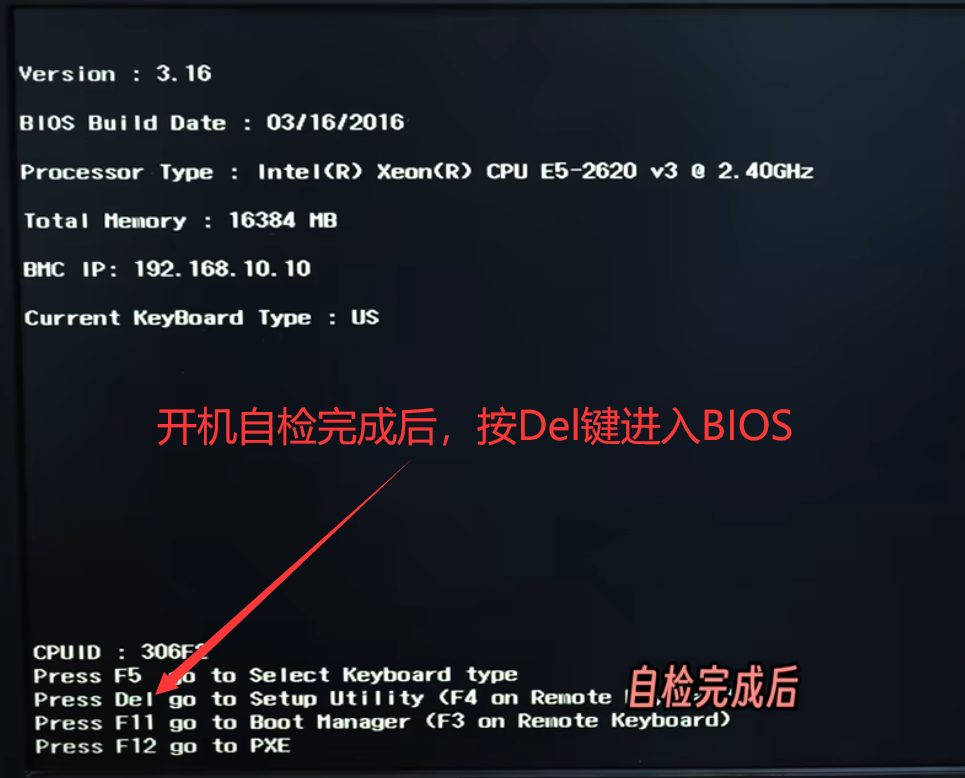
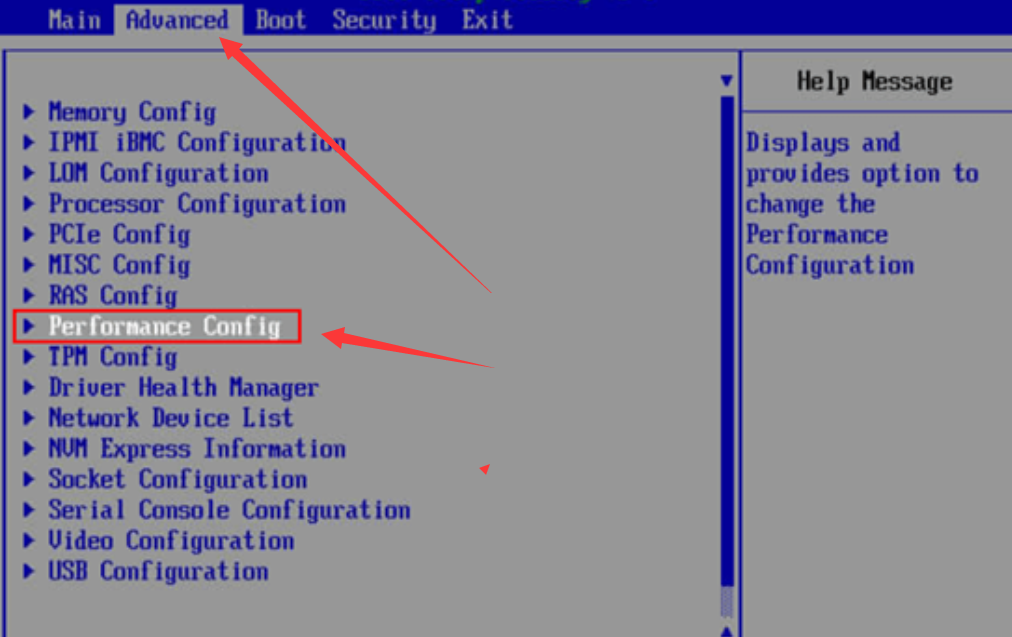
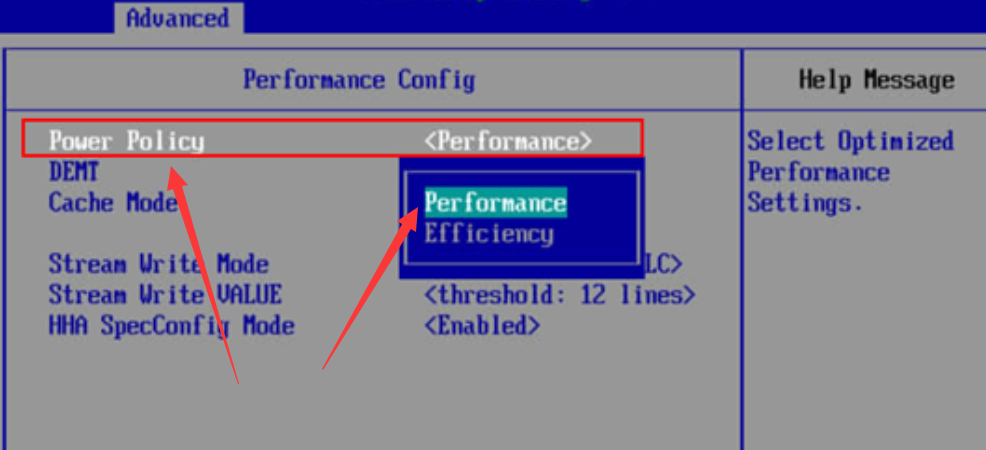

以下是华为服务器BIOS中设置CPU高性能模式的典型界面路径:
BIOS路径示例:
Advanced → Performance Config → Power Policy → [Performance]
二、戴尔服务器
- 进入BIOS:开机时按DEL或F12键进入BIOS设置界面。
- 选择系统BIOS:在主界面选择
System BIOS。 - 进入系统配置文件设置:选择
System Profile Settings - 设置性能模式:在
System Profile下拉框中选择Performance。 - 保存退出:按F10键保存退出并重启服务器。
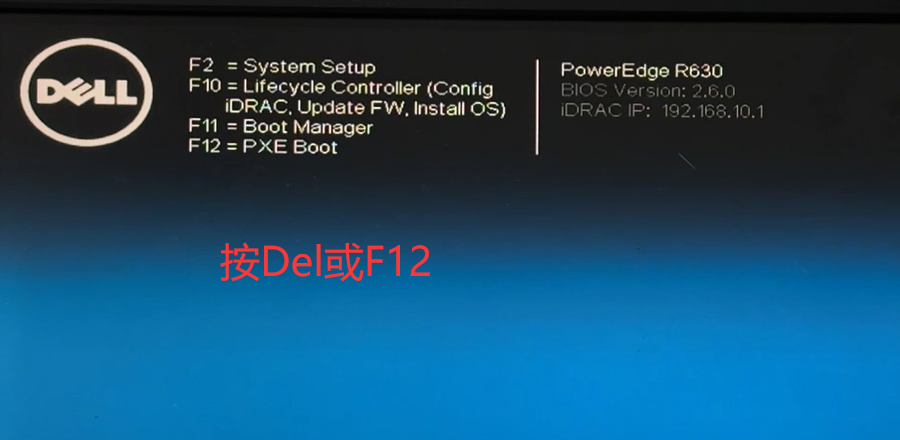
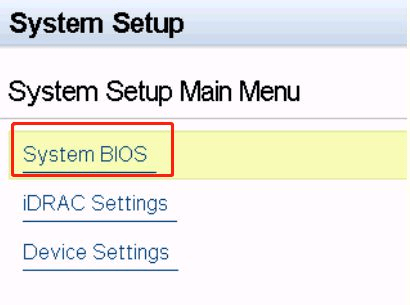
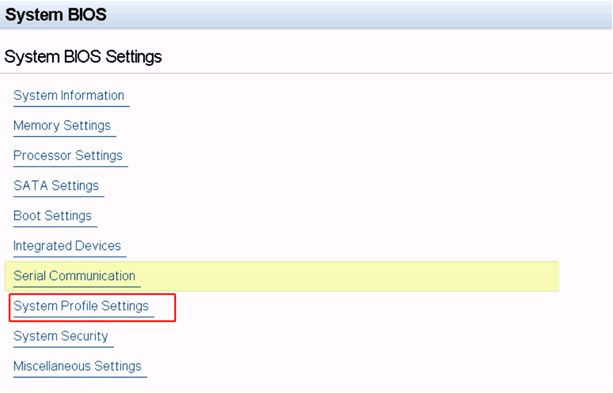
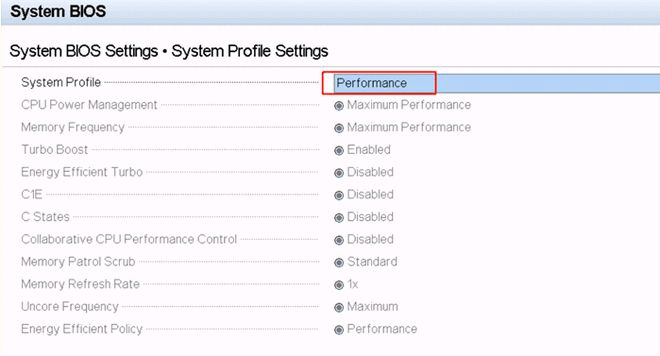
戴尔服务器System Profile设置位置示意图:
BIOS路径示例:
System BIOS → System Profile Settings → System Profile → [Performance]
三、浪潮服务器
- 进入BIOS:开机时按DEL或F12键进入BIOS设置界面。
- 选择芯片组设置:选择
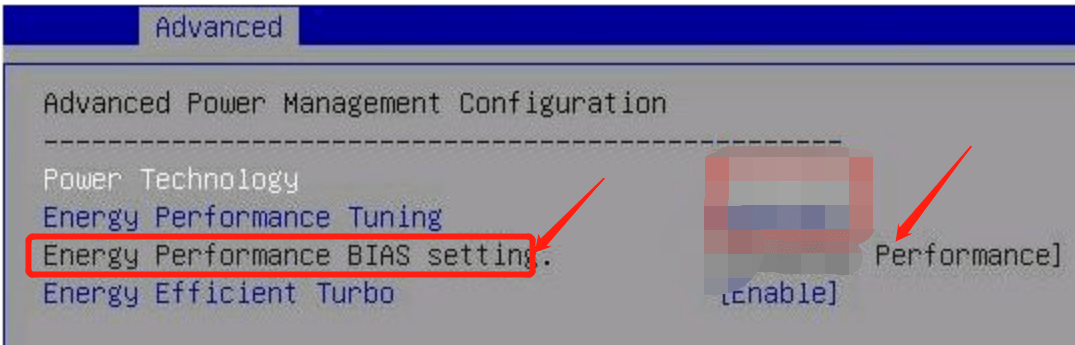
Chipset→Advanced Power Management Configuration。 - 进入能源性能调节:选择
Energy Performance Tunning。 - 设置性能偏好:将
Energy Performance BIAS设置为Performance。 - 保存退出:按F10键保存退出并重启服务器。

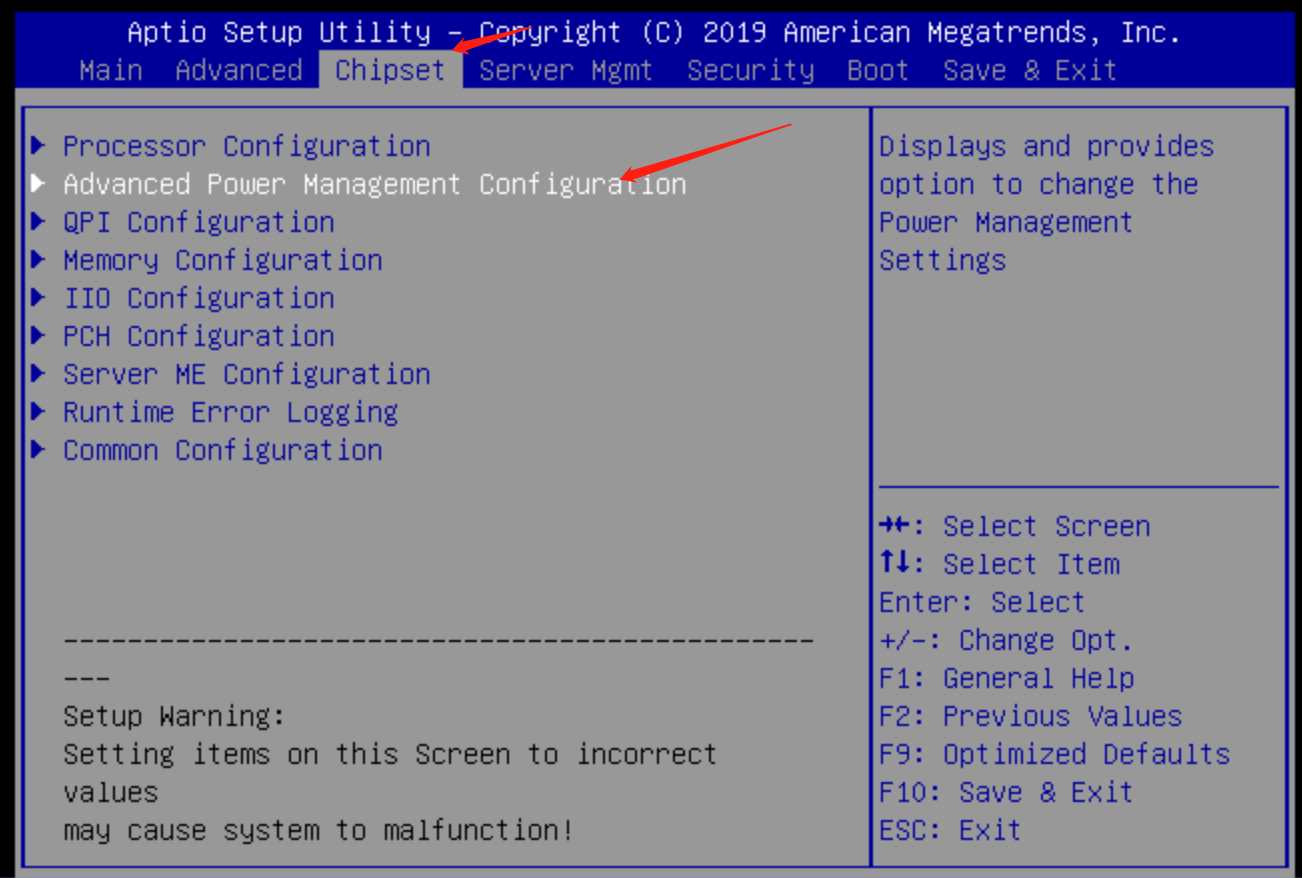
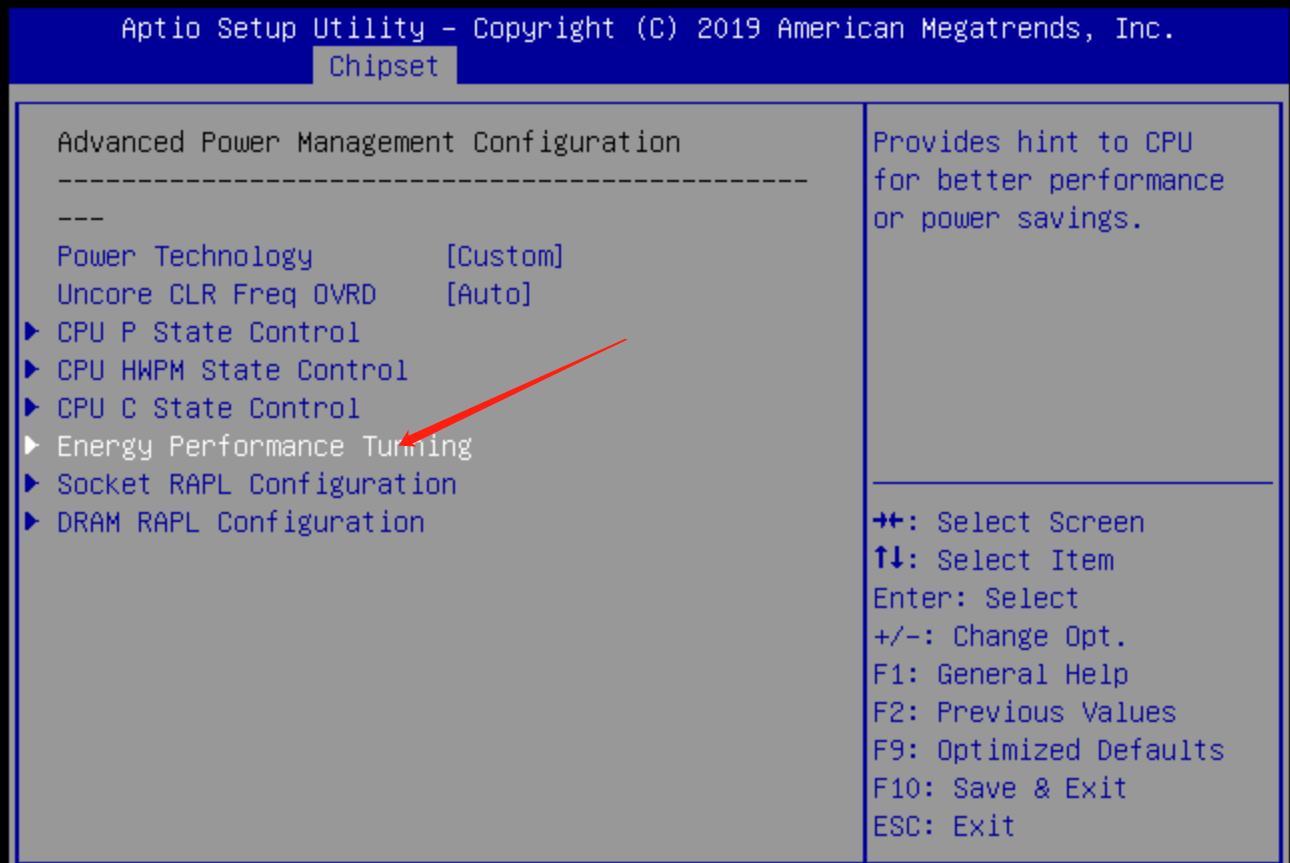
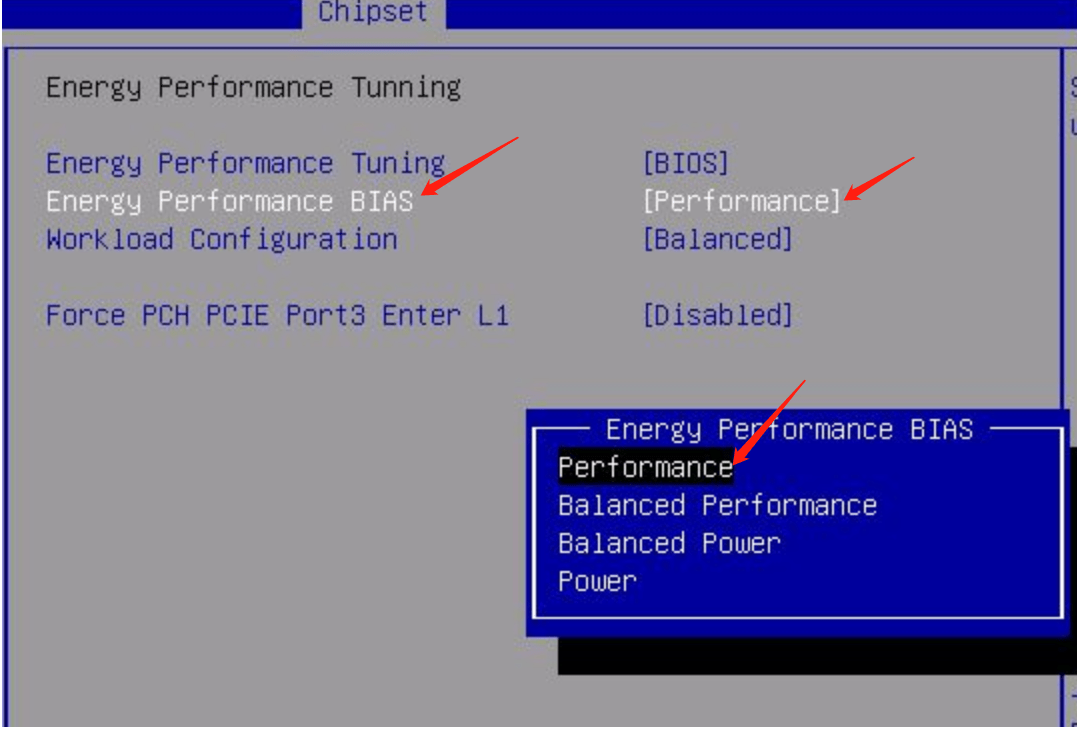
浪潮服务器Advanced Power Management Configuration中的相关设置:
| 设置项 | 路径 | 推荐值 |
|---|---|---|
| Power Technology | Advanced Power Management Configuration | Custom |
| Energy Performance Tuning | Advanced Power Management Configuration | Enabled |
| Energy Performance BIAS setting | Advanced Power Management Configuration | Performance |
| Energy Efficient Turbo | Advanced Power Management Configuration | Enabled |
BIOS路径示例:
Chipset → Advanced Power Management Configuration → Energy Performance BIAS setting → [Performance]
四、宝德服务器
- 进入BIOS:开机时按下Delete或F2键进入BIOS界面。
- 选择高级设置:选择
Advanced→CPU configuration。 - 进入高级电源管理:选择
Advanced Power management Configuration。 - 设置性能偏好:在
Energy Performance BIAS setting下拉框中选择Performance。 - 保存退出:按F10键保存退出并重启服务器。
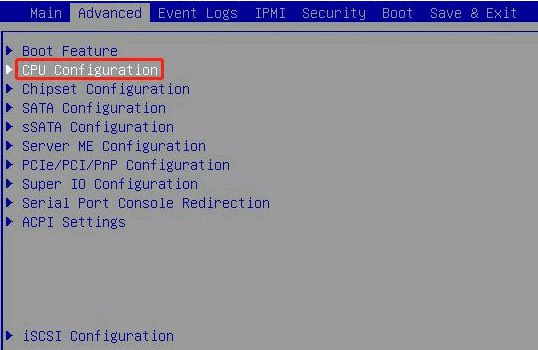
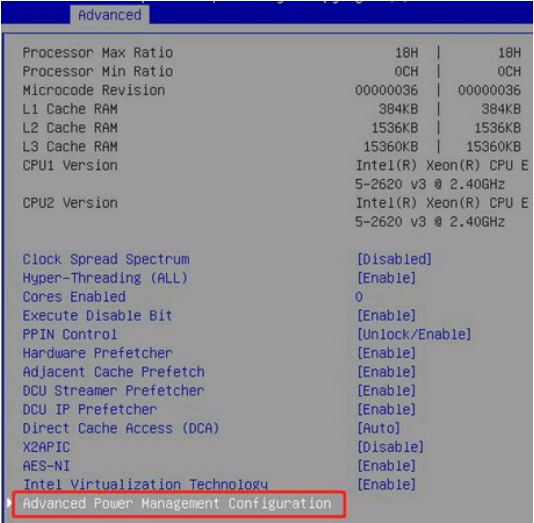
宝德服务器CPU Configuration中的相关设置参数:
| 设置项 | 值 | 说明 |
|---|---|---|
| Processor Max Ratio | 18H | 处理器最大倍频 |
| Processor Min Ratio | 0CH | 处理器最小倍频 |
| Hyper-Threading(ALL) | [Enable] | 启用超线程 |
| Intel Virtualization Technology | [Enable] | 启用虚拟化技术 |
| Advanced Power Management Configuration | 高级电源管理配置 |
| 设置项 | 路径 | 值 | 说明 |
|---|---|---|---|
| Power Technology | Advanced Power Management Configuration | 电源技术 | |
| Energy Performance Tuning | Advanced Power Management Configuration | 能源性能调节 | |
| Energy Performance BIAS setting | Advanced Power Management Configuration | [Performance] | 设置为性能模式 |
| Energy Efficient Turbo | Advanced Power Management Configuration | [Enable] | 启用能效Turbo |
BIOS路径示例:
Advanced → CPU configuration → Advanced Power management Configuration → Energy Performance BIAS setting → [Performance]
通用注意事项
重要提醒:
- 开启高性能模式会增加服务器功耗和发热量,请确保机房散热系统正常工作
- 部分老型号服务器可能不支持高性能模式,或选项名称略有不同
- 设置完成后建议运行压力测试,确保系统稳定运行
- 如遇到系统不稳定,可恢复默认设置或选择"Balanced"平衡模式
性能验证:设置完成后,可以通过以下方法验证CPU高性能模式是否生效:
- 在操作系统中查看CPU频率(应接近或达到最大睿频)
- 使用性能测试工具(如Stress-NG、Geekbench等)对比设置前后的性能差异
- 监控服务器功耗,高性能模式下功耗会有明显上升